Beiträge mit #XcodeTips

#XcodeTips

Öffentliche Beiträge auf X, die #XcodeTips verwenden.

Verwandte Hashtags

  1. David Steppenbeck@dsteppenbeck
    Did you know you can drag and drop your code around in #Xcode? This is great for making quick, minor adjustments to the ordering of variables, for example. You can even copy code from one file to another. #XcodeTips
    Herunterladen
    6867
  2. OhMySwift@ohmyswiftblog
    Arrays are one of the most widely used data structures in Swift, and we deal with a lot of array manipulations. One such manipulation is the removal of the last element from an array. Let's explore how to do it efficiently! #swift #ios #xcodetips #array
    029
  3. David Steppenbeck@dsteppenbeck
    Everyone's no doubt noticed that when you move the cursor over a curly brace #Xcode will flash its opening or closing counterpart. However, you can also double click the curly braces, which will select all the code in that chunk. Can be a useful visual aid at times. #XcodeTips
    Herunterladen
    1359301
  4. David Steppenbeck@dsteppenbeck
    Here's another good one for moving code around: Use cmd+opt+{ and cmd+opt+} to move code up and down, respectively. If no code chunk is selected, it'll move whichever line you're on. Also, you can use cmd+{ and cmd+} to indent code right and left. #Xcode #XcodeTips
    Herunterladen
    31158
  5. Cornelius Mark✓@corneliusmark
    Master Xcode shortcuts and save hours each week! Some must-learns: ⌘+Shift+O for file search, ⌃+I for indentation, and ⌃+6 for quick method navigation. A small time investment upfront pays huge productivity dividends. #XcodeTips
    202102
  6. David Steppenbeck@dsteppenbeck
    Here's another neat little time saver. If you want to make the same edit across multiple lines, press and hold the option key and drag the cursor down the lines you want to edit. After making your edits, tap esc or click anywhere on screen. #Xcode #XcodeTips
    Herunterladen
    41055
  7. Harry Ng 💻📱✓@harryworld
    Xcode Tips: 在模組中新增 SwiftUI 檔案的命名捷徑 當使用 Xcode 在模組中新增 SwiftUI View,不會顯示對話框詢問檔案名稱 這時候有兩個方法 1. 在 main app 中新增,然後把 View 拖進去模組 2. 在原本的檔案中先寫,然後使用 Refactor > Extract Selection to File #XcodeTips
    Herunterladen
    102305
  8. Shuhari✓@NSShuhari
    Xcode 26's ⌘+0 shortcut changed it now focuses the Coding Assistant first, requiring a second press to actually close the Navigators panel. #XcodeTips
    023559
  9. Shuhari✓@NSShuhari
    current Xcode beta has managed to make device previews even worse, buggy SwiftUI preview code can now trigger full device reboots not SpringBoard crashes - actual system restarts impressive work #XcodeTips
    204450
  10. Seth Sandler 🙌@SethSandler
    🔥 Unlock the speed of coding in Xcode with this pro-level shortcut! ⚡️ Press ⌘ + Shift + ] or [ to navigate between open code tabs. 💡 Effortlessly switch between files and keep your development flow intact. #XcodeTips #CodingShortcuts #ProductivityHacks
    0121.3K
  11. Mikaela Caron 🦄@mikaela__caron
    Loving these #XcodeTips #Xcode #swift #swiftUI
    Scott Smith @ScottSmithDev
    ⚡️💡💻📱 Quick Friday tip! In Xcode, the keyboard shortcut command + J will highlight your active editor pane and allow you to move to another pane with the arrow keys ⬅️➡️⬆️⬇️ then make it active by pressing return.😃 #iOSdev #Xcode #SwiftUI
    116
  12. Scott Smith@ScottSmithDev
    ⚡️💡💻📱 Quick Friday tip! In Xcode, the keyboard shortcut command + J will highlight your active editor pane and allow you to move to another pane with the arrow keys ⬅️➡️⬆️⬇️ then make it active by pressing return.😃 #iOSdev #Xcode #SwiftUI
    Herunterladen
    850227
  13. David Steppenbeck@dsteppenbeck
    Huh. So #Xcode can open new editors *below* as well as side by side. Pretty much lets you create a grid containing as many editors as you want... I need a bigger screen. Use ctrl+opt+cmd+T for this one (see next Tweet for more). #XcodeTips
    Herunterladen
    2213
  14. 13✓@ethanhuang13
    哦?這招我不知道 #XcodeTips
    Paul Hudson @twostraws
    Xcode tip #3: You probably already know that you can click after any open { or close } brace to have Xcode highlight its matching brace, but another useful tip is that you can double click a brace to select the entire block of code it contains.
    0221
  15. Paul Hudson✓@twostraws
    Xcode tip #3: You probably already know that you can click after any open { or close } brace to have Xcode highlight its matching brace, but another useful tip is that you can double click a brace to select the entire block of code it contains.
    Herunterladen
    1741459
  16. David Steppenbeck@dsteppenbeck
    This is one I wish I'd known years ago! You can add multi cursors by holding control+shift then clicking wherever you want (I knew we could use arrow keys with this, but never tried clicking!) Tidying up long methods like this, which I often do, is now easier. #XcodeTips
    Herunterladen
    3439
  17. 麹町jp ₍ᐡ• •ᐡ₎ 🧩こうじまち@KSJP9
    Xcode の使い方 並行処理/並列処理などの処理の実行時間、負荷、分担などを確認する ① Xcode > Open Developer Tool > Instruments ②「time」や「profile(r)」で検索 ③ Time Profiler を選択 ④ 録画ボタンを押してアプリを動かす Time Profiler の存在を覚えて、忘れたら検索 #XcodeTips
    Herunterladen
    11262.8K
  18. David Steppenbeck@dsteppenbeck
    If you're not already using #Xcode 'open quickly' then you're really missing out! Use cmd+shift+O to search through and open your files, functions, and properties. To open a file in the assistant editor, hold down the option key whilst opening it. #XcodeTips
    Herunterladen
    2313
  19. 13✓@ethanhuang13
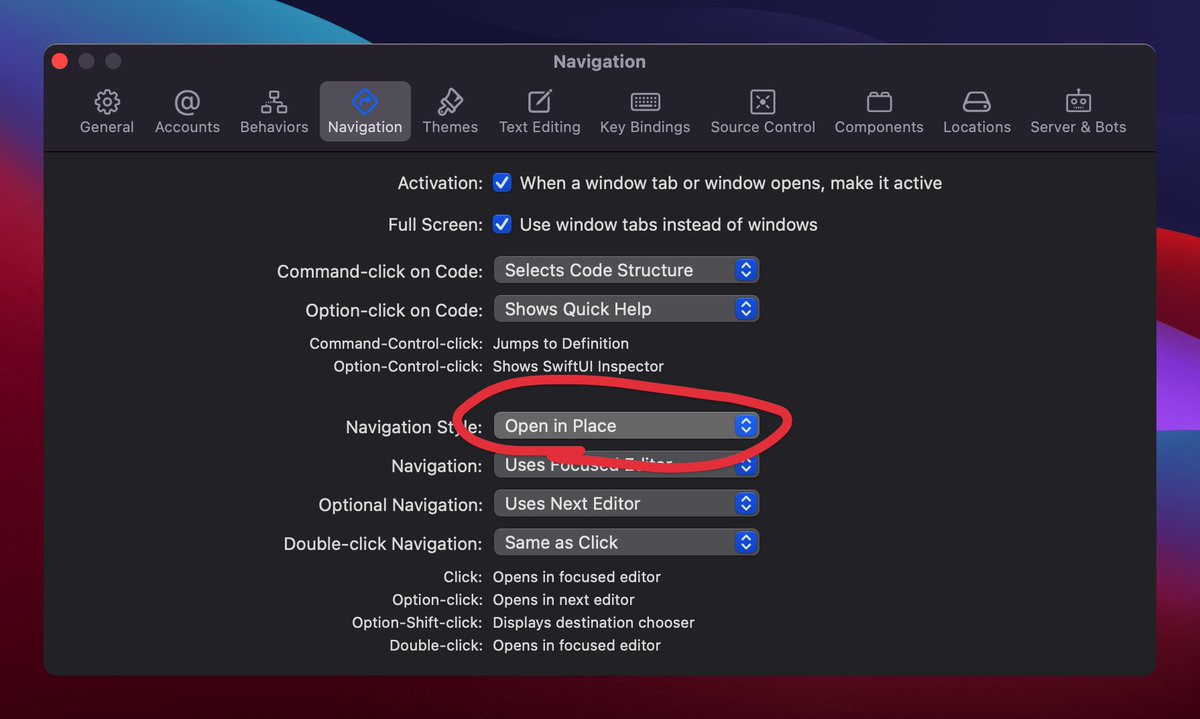
    如果你還不知道怎麼關掉 Xcode 12 的雙 Tab Bars 的話,在設定裡把 Navigation Style 改回 Open in Place #XcodeTips
    Herunterladen
    1527
  20. David Steppenbeck@dsteppenbeck
    If you’re using source control and want to quickly loop through all your changes in a file, use ⌃\ and ⌃| to jump to the next and previous changes. #Xcode #XcodeTips
    Herunterladen
    1013
  21. Mehr Beiträge anzeigen